When the customer adds products into their shopping basket they are displayed in their Checkout. The functionality of the checkout can be changed to reflect your shop. This is useful when you are using a catalogue rather than an online shop.
To change the functionality offered by the checkout select 'Checkout'
on the 'Options' menu from the Product Database screen.
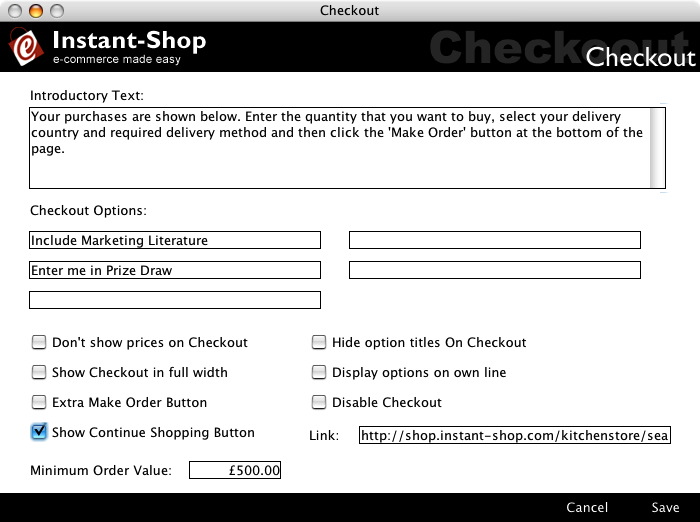
The introductory text can be used to help the customer with the buying experience and to explain what to do next. The introductory text appears above the list of purchased products.
The checkout options provide up to 5 checkboxes that appear on the checkout just below the list of purchased products. The titles for these checkboxes can be entered into the fields provided. The checkboxes will automatically appear if the fields are entered. To remove a checkout option simply clear all the text out of the field.
If you want your customers to use Instant-Shop to make enquiries but you don't want them to see the prices or enter quantities then selecting this option will remove the item price, quantity and total fields from the checkout. It will also remove the subtotal, delivery options, VAT and order total from the page.
Hide Option Titles on Checkout
By default purchasing an item with an option will show the name of the option in the options column. For instance if you have options for colour and size, Instant-Shop will show "Colour: Red, Size: Large" in the option column. By hiding the option titles it will reduce the text to just show "Red, Large".
Show Checkout in Full Width
The checkout is quite a wide page. If the theme is particularly narrow then it may squeeze the checkout too much. If this is the case then Instant-Shop will display the checkout in the full page width of 650 pixels regardless of the theme width. Don't worry we will advise you if you need to select this option when your theme is provided to you.
Display Options On Own Line
Normally Instant-Shop will show the product options in their own column. Selecting this option will show the options on the line below the product name.
Disable Checkout
The checkout is essential when you want your customers to buy products or to make an enquiry but if you just want them to browse your catalogue then it is not needed at all. If you disable the checkout you will also remove the buy buttons from the whole site as well as removing the shopping basket.
WARNING: If you disable the checkout you will not receive any orders!
If this option is selected a new button will be shown next to the checkout title that will return the customer to the product index. The continue shopping page can be any page on the site. By default it will be the shop's home page. When this option is selected Instant-Shop will provide an extra link field to show which page should be loaded when the 'Continue Shopping' button is clicked.
Minimum Order Value
If the minimum order value field has been set, Instant-Shop will not allow the customer to place an order below the minimum order value.
Instant-Shop™ User Manual