Instant-Shop has been designed to look make your site look good no matter what products you are selling. The Appearance screen allows the look and feel of the site to be changed to your personal taste.
To change the appearance select 'Appearance' on the 'Options' menu from the Product Database screen.
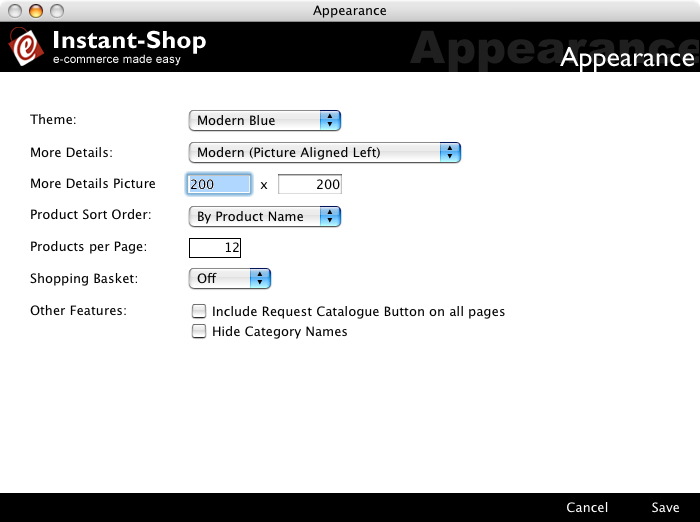
Theme
The Theme is influence what graphical appearance of the site. Instant-Shop comes with three themes by default: 'Modern Blue', 'Modern Orange' and 'Silver Samurai'. These themes are very simple.
Instant-Shop can be designed to fully reflect your site using a custom theme file. Custom theme files are available from Ambrit or you can design your own. For an example of a custom theme click here. If you have a custom theme then select 'Custom' from the menu. If you haven't got a custom theme designed and you select 'Custom' it may cause your site to have problems.
More Details
You can change the style of the template used on the product more details page. These templates allow you to select how the product picture is aligned to the rest of the page.
More Details Picture
The picture on the More Details page can be adjusted in size. The default size is 200 x 200 pixels. If the picture in the product database is bigger, Instant-Shop will automatically allow the customer to see it enlarged.
Product Sort Order
The order that the products are displayed on the web can be adjusted. By default the products will be shown based on their product name. Other options allow for the products to be sorted by their part code, or by their price.
You cannot hand pick the order of the products, but you can mark some products to appear at the top of a list by selecting the Featured Product option within the product record.
Products Per Page
The Products Per Page is the number of products that will be displayed on a product page on the web site. If there are more products that will fit on a page Instant-Shop will automatically create more pages for the extra products. By default Instant-Shop will show 12 products per page.
TIP: If you put too many products on a page then the download times of the page may be affected. If you put too few products on a page then the customer will have to do more work to see all your products!
When a customer buys a product the item they are taken straight to the checkout page so they can see their purchases. The shopping basket will show the products purchased in a separate window so the customer does not lose their current location within their store.

There are several options for the shopping basket.
Off - Don't display the shopping basket (default).
Floating - This will open a new window with the shopping basket window.
Left/Right - This will show the shopping basket window in the page itself
either on the left or right hand side of the page.
Other Features
Include Request Catalogue Button On All Pages
If this option is selected then Instant-Shop will offer the customer a printed catalogue if they prefer. This will create an extra form on the site that will collect their address details. The customer's details will be emailed to the shop owner as a brochure request.
Pro only: Instant-Shop Pro will create the customer as an account (with mailing list selected) so their details will be downloaded with the rest of the accounts.
Hide Category Names
This checkbox will hide the category names when showing the catgeories when the categories have pictures.
Instant-Shop™ User Manual