Subproducts are variations of the main products. They should be used when the main product description and picture apply to multiple products. The subproducts table can also handle quantity discounts, eg if 1 is bought for £10, but if you buy 5 then they are only £5 each.
Adding a subproduct will show a price table in the more details page. If the user clicks buy item and there are subproducts available they will be asked to select a subproduct before proceeding to the checkout.
Subproducts can be used in conjunction with options. First the customer will be asked to select a subproduct and then they will be asked to configure the product options if available.
Tip: Subproducts do not get counted as products when calculating the number of products hosted!
To add subproducts click on the 'Subproducts' tab within the product.
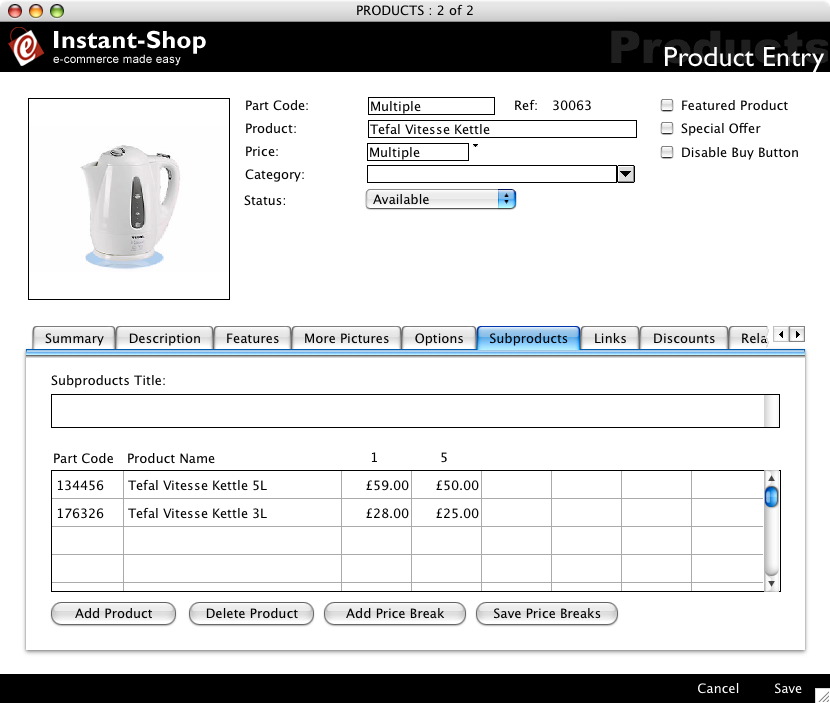
Subproducts Title
The text in the 'Subproducts Title' field is displayed at the top of the subproducts section to introduce the section.
Subproducts List
The subproducts list is a scrolling list of all subproducts associated with the product.
Part Code
The 'Part Code' column shows the part code for the subproduct. Unlike options if the customer purchases a subproduct the checkout will carry the part code, if available, through on to the order. Although the part code is an optional field, it is highly recommended that a part code is allocated.
Subproduct Name
The 'Subproduct Name' is the name of the subproduct.
Add Subproduct
The 'Add Subproduct' button will add a new subproduct line into the Subproduct List. If the subproduct is the one added to the list then the main product's part code and name will automatically be inserted on the first line. If more than one subproduct is added then the part code and price of the main product will be changed to 'multiple' as there will no longer be a single price for the product.
As many subproducts can be added against a product as required.
Delete Subproduct
To delete a subproduct, first click on the subproduct line and then click 'Delete Subproduct'.
Price Breaks
Price Breaks allow the price the change based on the quantity ordered. The Price Breaks are shown as columns. By default there is only a price break for one item.
Important: Price Breaks should be entered as the price for each item individually. eg if you can buy 10 for £12.00 then the item price should be entered as £1.20. If 11 are purchased then the cost will be calculated as £13.20.
Also note that the price breaks are not for packs. If you sell a 100 pack for £5.00 this should be entered as a subproduct and not a price break. Price breaks would allow someone to get a special price for buying 101 of the items which may not be possible!
Adding Price Breaks
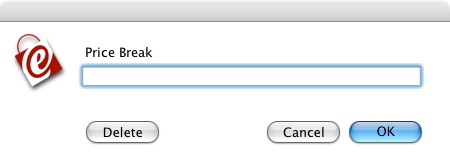
To add a price break click 'Add Price Break'. This will bring up a dialog that will add the next price break into the table. Upto 6 price breaks can be added. The price break will automatically be added in numerical order.
Editing Price Breaks
To edit a price break, click on the price break that you want to change in the subproducts header to bring up the Price Breaks dialog. Change the price break accordingly and click OK.
Deleting Price Breaks
To remove a price break, click on the price break that you want to delete in the subproducts header to bring up the Price Breaks dialog. Click 'Delete' amd the price break will be removed. The price break table will be adjusted accordingly.
Instant-Shop™ User Manual