Instant-Shop allows customers to choose the type of product from a set of predefined options such as colour and size. Product options can also affect the price so they can be used to allow the customer to configure the product they want and will calculate the price. They can also be used to upsell related items at the point of purchase. A product can be configured with as many options as required.
To add options click on the options tab within the product.
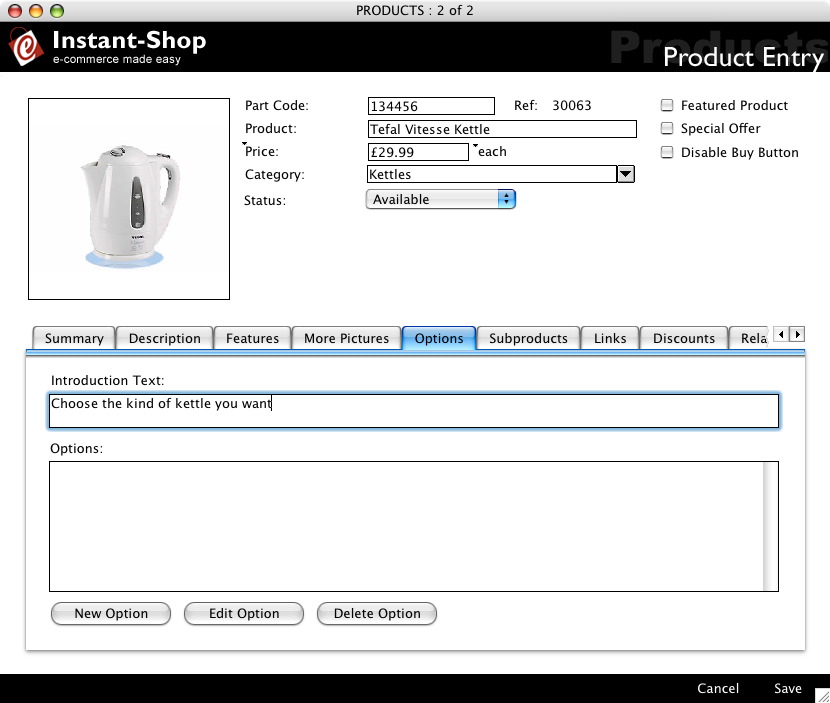
Option Title
The text in the Option Title field is displayed at the top of the option section to introduce the section.
Options
The Options list shows a list of all options that have been added to this product.
Adding Options
To add an option click the 'New Option' button. This will bring up the options window: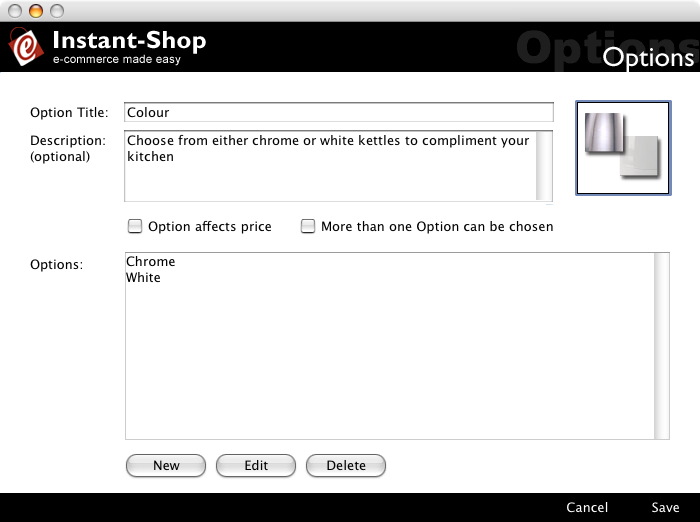
Option Title
The option title is the name of the option group. It is not the option itself.
Description
The option description is shows a brief description about the option. This field is completely optional but can be used to good effect to help describe what the option would be used for and help the customer decide if they need the option. The description field should ideally be no more than 2 sentences.
Picture
The picture field is also optional. It allows the customer to see the option graphically. Note there is only one picture per option.
To import a picture simply click on the picture area and either paste a picture in from your clipboard or select 'Import Picture' from the 'Picture' menu to import a picture file from your hard disk.
Instant-Shop will accept a wide range of different picture formats including BMP, TIFF and JPEG. The optimum size for an option picture is 80 x 80 pixels. Instant-Shop will scale your graphic automatically to fit this size.
Option Affects Price
Options can affect the end price of the product when selected. If the option affects the price then the checkbox 'Option Affects Price' must be checked. If it is checked then the options list on the page will change to show an extra column that will show the extra prices.
Note that Instant-Shop adds the price difference to the main price. So if a white kettle is £30 and a chrome kettle is £40 put the chrome kettle in at £10 extra.
More Than One Option Can Be Chosen
Options by default use a popup menu to select the different kinds of options. A popup menu will only allow one item to be chosen such as colour. Selecting 'More Than One Option Can Be Chosen' changes the option to use checkboxes instead of popup menus so more than one option from the list can be selected. This is particularly useful when upselling related items so in the kettle example matching toasters and tea set could be selected. Alternatively these extra items could be entered as separate options to acheive the same effect. Checkboxes are a little easier for the user to choose from as all their options are displayed on the screen at one time and only need a single click to activate/deactivate.
Adding Option Items
To add an option item click the 'New' button under the options list.
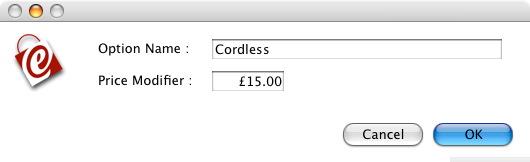
If 'Option affects price' has been selected in the previous page an extra field is shown to allow the price difference to be added. Remember this is the difference in price not the price for the whole item.
To relate a product simply drag one of the products from the floating window into the related products list on the main products page.
Once this has been done the related product will then be added to the list.
Price modifiers can be added at a later stage if required.
Remember price modifiers can also be negative if the price is reduced by selecting the option item.
Editting Option Items
To edit an option item, simply double click on it to bring up the options item screen or click on it to highlight it and then click 'Edit'.
Removing Option Items
To remove an option item from the list, simply click on it to highlight it and then click 'Delete'.
Instant-Shop™ User Manual