Instant-Shop will calculate delivery charges based on what has been ordered and can charge different delivery for shipping to different countries. There are three different delivery tables that can be used:
By Order Value - this table calculates the delivery based on the total
value of the order.
By Order Weight - this table calculates the delivery based by adding
up the weight of each item on the order.
By Order Quantity - this table calculates the delivery based on the
number of items on the order.
Shipping regions can also be restricted. If you only ship to a specific range of countries simply enter a delivery table for each and all other countries will automatically be excluded.
Tip: If you do not specify delivery methods then Instant-Shop will by default ship anywhere in the world for free!
To add delivery charges select 'Delivery Charges' on the 'Options' menu from the Product Database screen.
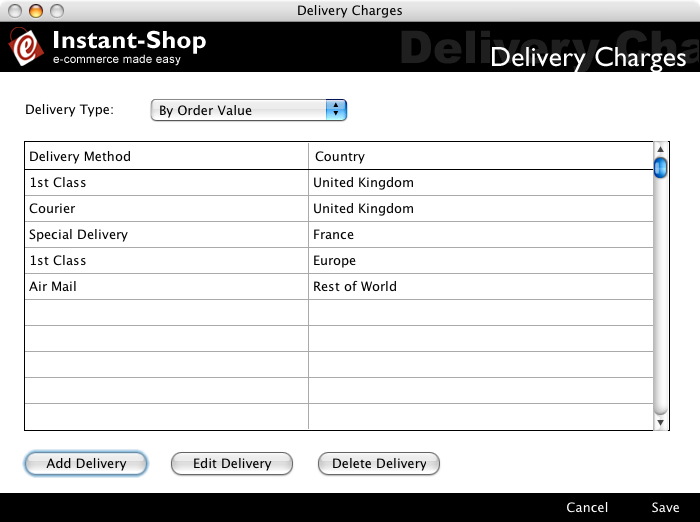
Delivery Type
The Delivery Type popup menu allows you to pick the delivery table that you want to use either 'By Order Value', 'By Order Weight' or 'By Order Quantity'.
You can only use one type of table for calculating the delivery charges.
Delivery Charges
The main delivery charge list will show all delivery methods that you have been defined for each country.
Add Delivery
To add a new delivery charge click the 'Add Delivery' button. This will take you to the Delivery Method screen.
Tip: You can have multiple delivery methods for each country.
Edit Delivery
To edit an existing delivery charge click the 'Edit Delivery' button. Alternatively double click on a delivery charge in the delivery charge list.
Delete Delivery
To delete a delivery charge highlight the delivery method that needs deleting and click the 'Delete Delivery' button.
Delivery Method
Delivery methods are price tables for calculating delivery to a particular country using a particular delivery method.
Delivery Country
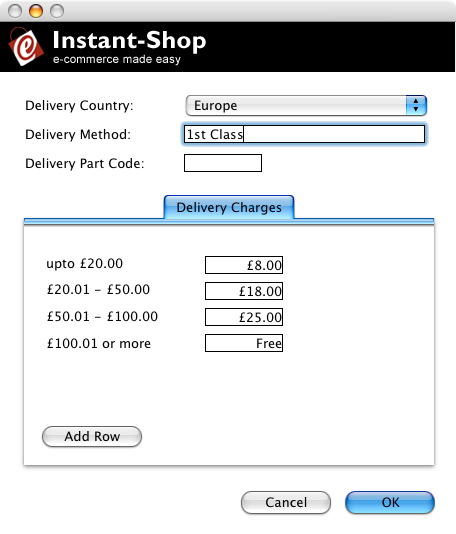
Select the delivery country for the delivery method from the Delivery Country popup menu. The menu contains a list of all countries in the world. It also contains menu for the continents such as 'Europe' and 'America' and 'Rest of World'.
If you select a country then this country will be inserted into the list of delivery countries available on the checkout page. If you select a continent then all countries in that continent will be added to the country list. If you select 'Rest of World' then all countries will be added to the menu.
If you create a delivery methods for the 'United Kingdom', 'Europe' and 'Rest of World' then selecting 'United Kingdom' in the checkout will choose the United Kingdom delivery methods (ie it will not pick Europe or the rest of world). Likewise if you choose France in the checkout it will use the delivery method for Europe and not for the rest of the world.
Delivery Method
The Delivery Method field will contain the name of the delivery method used for the delivery eg 'First Class', 'Airmail' or 'Courier'. The Delivery Method will be shown on the checkout page when the delivery country has been selected. Several delivery methods can be applied to one country by creating multiple delivery charge records.
Delivery Charge Table
The Delivery Charge table allows upto 6 different price/weight/quantity breaks to be defined based on the type of delivery selected. eg if 'By Order Value' has been selected from the Delivery Type field then these breaks will be based on the order value etc.
By default the Delivery Charge Table will show a single delivery break with free delivery. This means that if this delivery method is selected then no matter what was ordered then delivery will be free. To assign a flat rate delivery charge based on the selected delivery method simply enter the delivery price.
To define extra delivery breaks click 'Add Row'. This will ask you for the upper limit for the break.
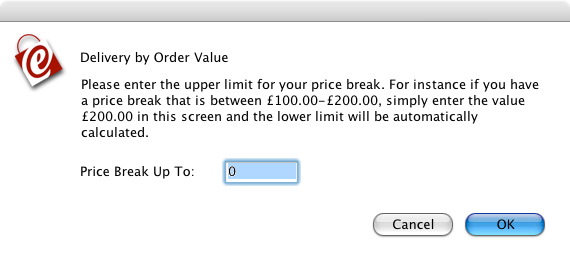
Enter the upper limit of the Price Break. For instance if your price
breaks are £0 - £20, £20 - £50, £50 -
£100, and above £100 you will need to add three rows, for
£20, £50 and £100 respectively. The final Quantity
Band is calculated automatically. The Price breaks will automatically
be entered in order in the table.
To edit a Price Break, click on the row header and enter a new value. The table will automatically reconfigure itself to accommodate the new entry.
To delete a Price Break, click on the row header and then click on 'Delete'. The price table will automatically reconfigure itself to accommodate the deletion.
On the Delivery Charges screen enter a value for each new Price Break in the box provided. To amend a Price click on the appropriate box and enter a new value.
Instant-Shop™ User Manual